> For the complete documentation index, see [llms.txt](https://170th-street.gitbook.io/hx/llms.txt). Markdown versions of documentation pages are available by appending `.md` to page URLs; this page is available as [Markdown](https://170th-street.gitbook.io/hx/modifications/watercooling-installation.md).
# Watercooling Installation
**Watercooling Installation**
The CMP 170HX is a passive server card designed for forced-air datacenter rack cooling. For workstation use at home or in an office, watercooling is the recommended solution — it provides quiet operation, excellent temperatures, and is compatible with standard PC water loop components.
**Why Watercooling**
The original passive heatsink requires very high-RPM server fans to cool effectively. In a standard PC case or workstation chassis, it will overheat at load without dedicated airflow. A watercooling block replaces the passive heatsink entirely and allows the card to run silently at load.
At 180W (non-FMA FP32 workload), a 360mm radiator with fans at minimum speed holds the GPU at 45°C. This is excellent thermal performance for a 250W+ card.
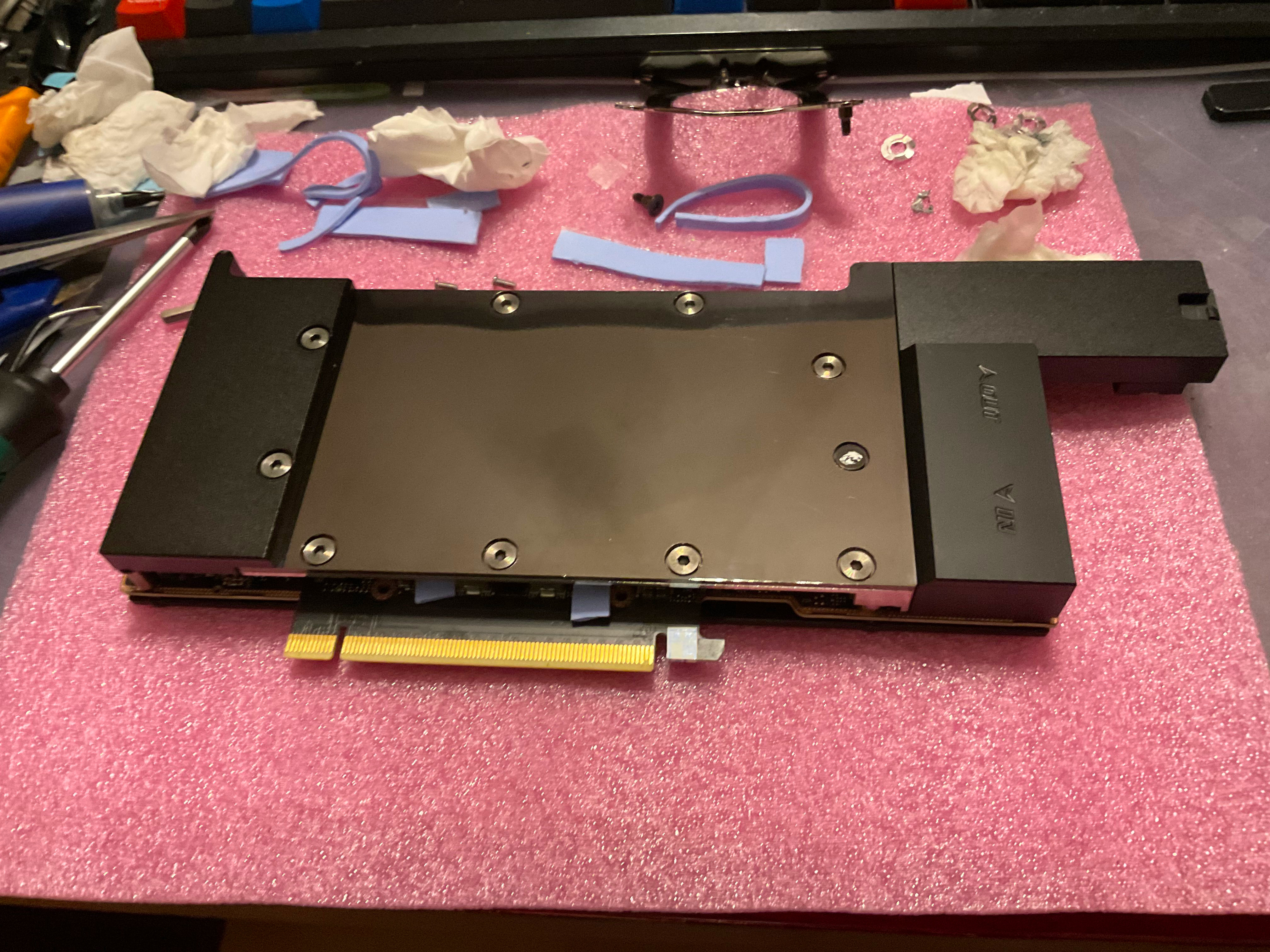
**Compatible Waterblock**
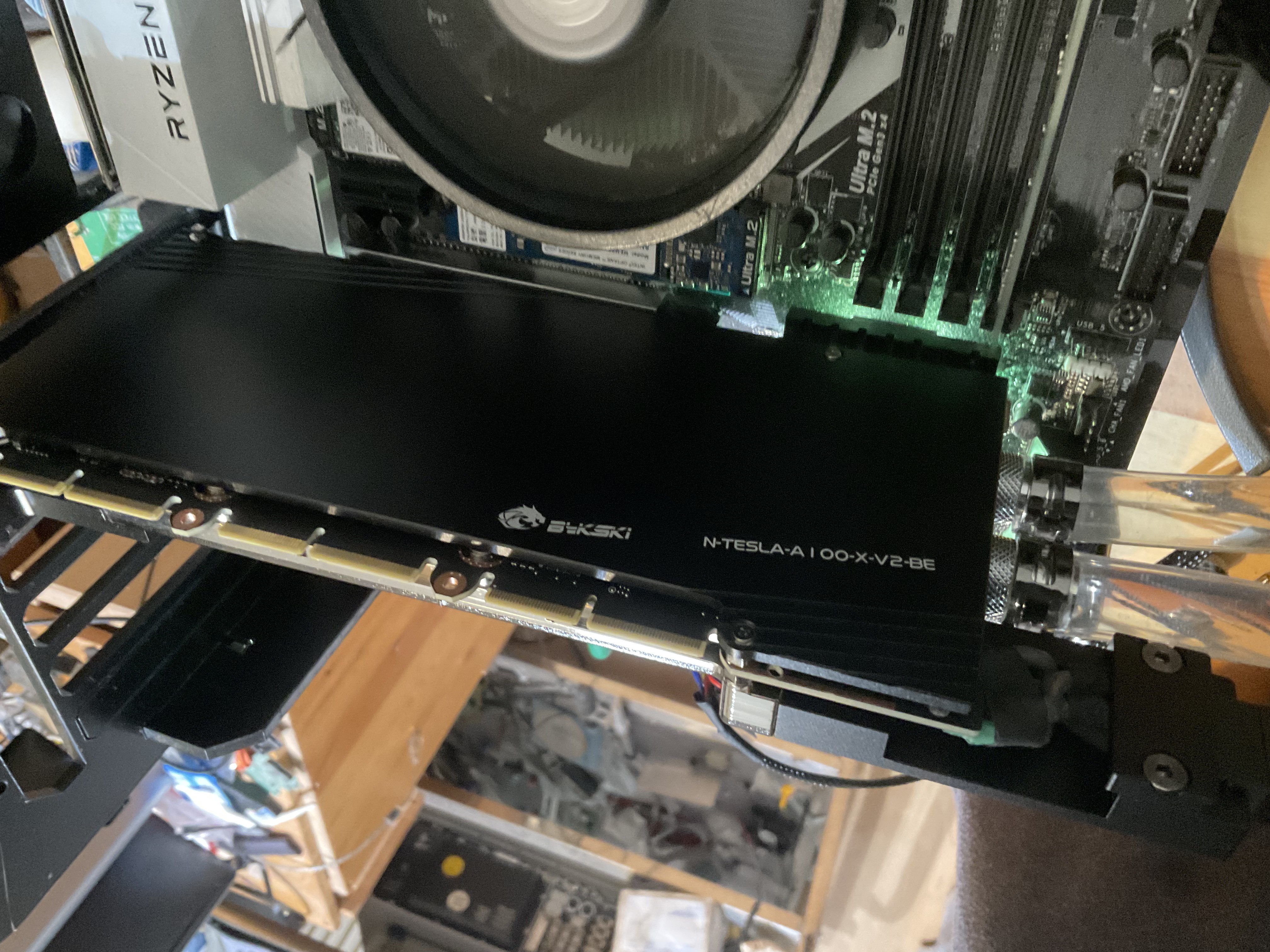
The recommended waterblock is the **Bykski N-TESLA-A100-X-V2**. This is the only commercially available full-coverage waterblock confirmed compatible with the CMP 170HX. It is also compatible with the NVIDIA A100 40GB PCIe, the NVIDIA A30 24GB, and the NVIDIA Tesla L40 — reflecting the shared PCB design.
⚠️ **Do not confuse with the N-TESLA-A100-80G-X-V2** — that is for the A100 80GB and is a different, incompatible PCB layout. ⚠️ **Avoid the non-V2 version** — the older model uses acrylic construction which is less durable. The V2 uses all-metal construction.
**What's in the Box**
* Full coverage GPU waterblock (nickel-plated copper + stainless steel)
* Aluminum backplate (black anodized, not in contact with coolant)
* Spring-loaded mounting screws
* Thermal pads (set)
* Thermal paste
* G1/4 plug fittings (2×)
* Mounting hex screws (M2, 9.5mm)
* Hex wrench (**note: included wrench is wrong size — bring your own metric hex set**)
**Before You Start**
Read the Teardown Guide completely and complete Steps 1–9 (full PCB separation from chassis and heatsink removal) before attempting waterblock installation. The waterblock installation begins with a bare PCB.
Also read the critical warning below before touching thermal pads.
**⚠️ CRITICAL — Thermal Pad Warning**
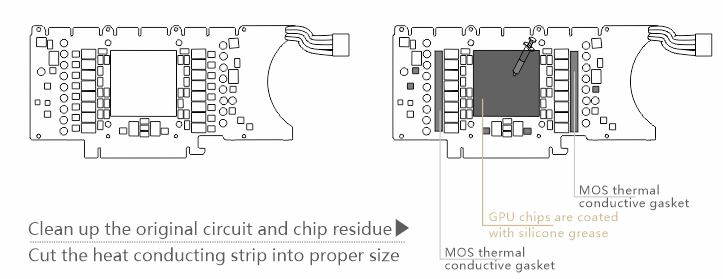
**All unpopulated IC footprints on the PCB must be covered with thermal pads.** The waterblock's contact pillars press directly onto these footprint areas. Without a thermal pad covering an empty footprint, the metal contacts of the waterblock can short across the exposed copper pads of the empty IC, causing permanent damage. This is the most common way people damage their card during waterblock installation.
When placing thermal pads around the GPU die, inspect every IC footprint area within reach of the waterblock's contact pillars and ensure it is fully covered before lowering the block.
**Procedure**
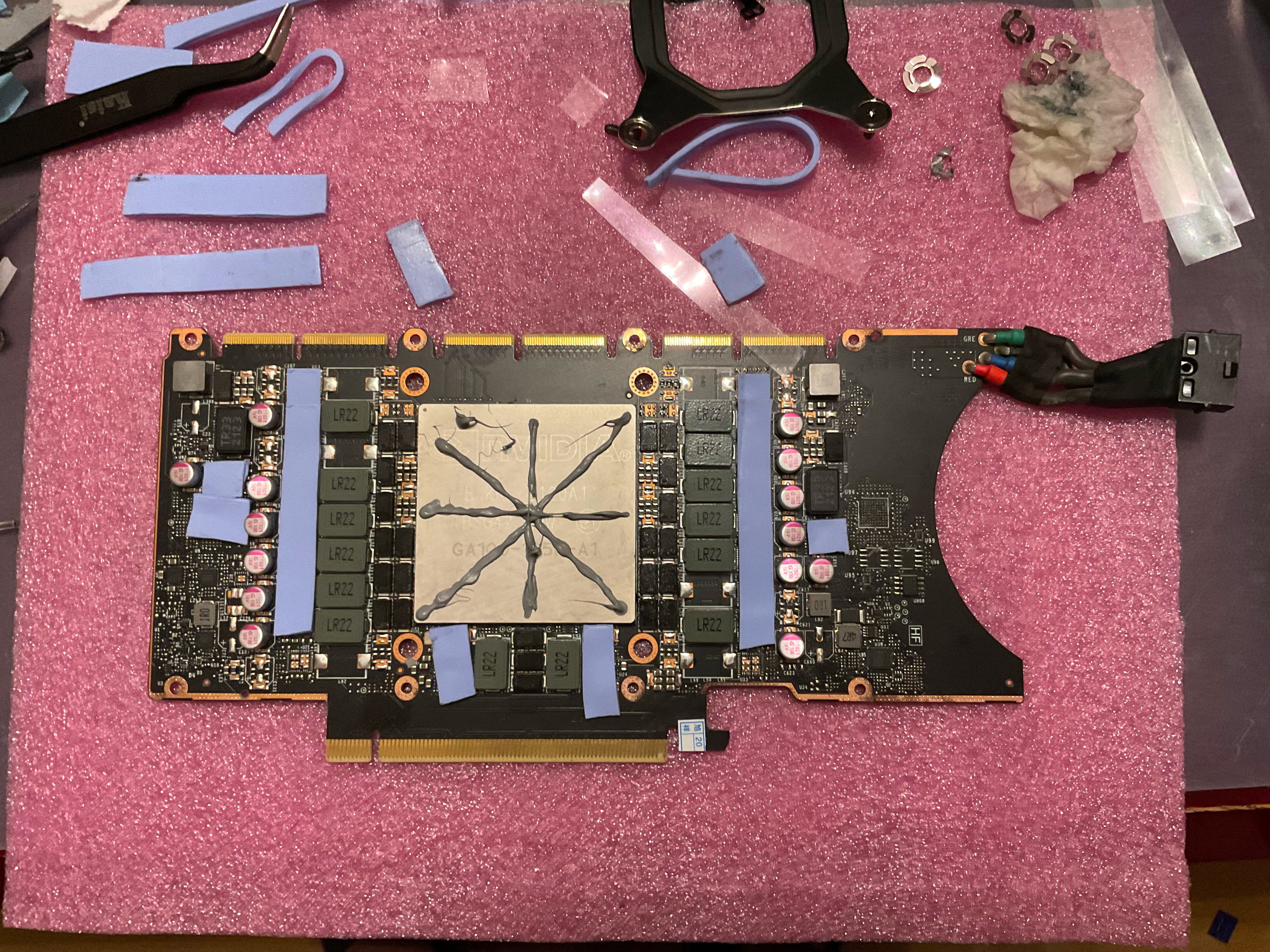
**Step 1 — Thermal Pads on VRM MOSFETs (Left Side)** Cut and place thermal pads on the DrMOS MOSFETs on the left side of the GPU die. Cover all component areas and all unpopulated IC footprints in this region.
**Step 2 — Thermal Pads on VRM MOSFETs (Right Side)** Same as Step 1 for the right side of the GPU die.
**Step 3 — Thermal Pads on Bottom VRM Components** Apply thermal pads to the bottom-left and bottom-right areas of the GPU die where additional DrMOS and inductor components are located.
**Step 4 — Thermal Pads on PMICs** Apply thermal pads to the PMIC on the right side of the GPU die (between an inductor and capacitor) and the two PMICs on the left side below the 3.3 µH inductor.
**Step 5 — Thermal Paste on GPU Die** Apply a small amount of thermal paste to the GPU die (the large copper heat spreader covering the GA100 and HBM2e interposer). A pea-sized amount in the center is sufficient — the waterblock will spread it.
**Step 6 — Prepare the Waterblock** Flip the waterblock over. Remove the power connector holder cover (Item 4 in the exploded diagram) by unscrewing the two hex nuts with a metric hex wrench. Set this cover aside — it goes back on in Step 12.
**Step 7 — Place the Waterblock** Before lowering the waterblock onto the PCB, visually confirm one more time that every IC footprint area under the waterblock's contact pillars is covered with thermal pad. Lower the block carefully onto the PCB.
**Step 8 — Align and Flip** Flip the card (waterblock + PCB together) so the back of the PCB faces up. Align the four waterblock mounting screw holes with the PCB holes.
**Step 9 — Install First Screw** Take one of the original GPU washers (saved from teardown Step 8) and place it on one mounting hole. Install one spring-loaded screw from the waterblock kit — do not install all four yet. Installing just one first allows flexibility for the power connector in the next step.
**Step 10 — Install Power Connector ⚠️** Insert the stiff power cable into the slot on the waterblock's top right corner. The cable is very rigid and exerts significant force on the PCB. This step is much harder if the waterblock is already fully screwed down.
If you cannot get the power connector in with one screw installed, remove the waterblock entirely, insert the power connector into its position first, then place the waterblock back and immediately begin screwing before the cable pushes the block out of alignment. Double-check thermal paste position has not shifted.
**Step 11 — Install Remaining Screws** Place the remaining three washers and install the three remaining spring-loaded screws. Tighten evenly in a cross pattern. After tightening, look at the edges of the waterblock and confirm the thermal pads are making contact with the component pillars — you should see slight compression of the pads.
**Step 12 — Reinstall Power Connector Cover** Reinstall the power connector holder bracket onto the waterblock with the hex wrench.
**Step 13 — Backplate (Optional but Recommended)** The backplate is included in the box. It reduces the chance of PCB damage from handling. Retrieve the PCIe bracket saved from Teardown Step 1 — this is critical because it provides the correct spacing between the PCB and backplate. Without it, the backplate may cause shorts.
Align the PCIe bracket on the left side of the PCB, then place the backplate on top. Screw holes on the PCB, PCIe bracket, and backplate should all align. Install the four 9.5mm M2 screws to secure the backplate.
**Step 14 — Connect to Your Water Loop** Connect the waterblock into your water cooling loop using standard G1/4 fittings. Before filling with coolant, pressure test the loop for at least 15 minutes to verify air tightness.
**Warning on Thermal Runaway**
The GA100 die exhibits a positive feedback loop between temperature and power consumption — higher temperature increases CMOS leakage current, which increases temperature further. If you dry-run the card without coolant as a quick test, power off within 5 minutes. The card will enter thermal runaway above \~80°C if not properly cooled.